
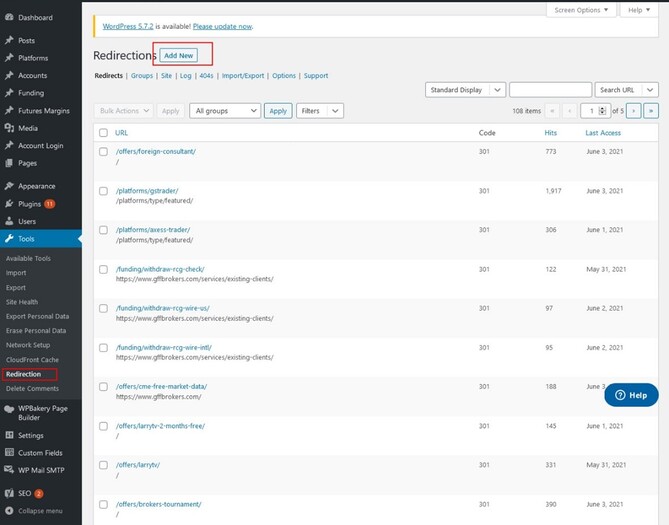
In the WordPress dashboard, navigate to Tools > Redirection and then click Add New.
- In Source URL, enter the old address you want to redirect from. Use just the part after your domain, for example
/old-page/. - In Target URL, enter the new address you want to send visitors to. This can be:
- A page on your site, for example
/new-page/. - A full external address, for example
https://example.com/page.
- A page on your site, for example
- Click Add Redirect.
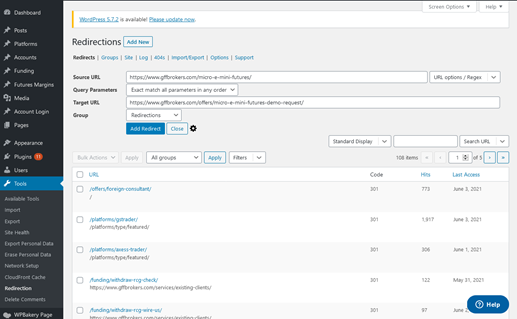
By default, the plugin creates a 301 (permanent) redirect, which is right for most situations.
Optional settings
Click the gear icon next to the redirect fields to:
- Change the redirect type:
- 301 (Moved Permanently): the page has moved for good. Best for SEO.
- 302 or 307 (Temporary): the move is temporary, for example during a short promotion.
- Ignore query parameters: if you'll share the link on Facebook, in email campaigns or elsewhere that may add tracking codes (like
?fbclid=...), set Query Parameters to Ignore all parameters so the redirect still works. - Add a title, to help you remember what the redirect is for.
Fix broken links (404 errors)
The Redirection plugin keeps a log of pages visitors tried to reach that don't exist.
- Go to Tools > Redirection, then click 404s.
- Hover over a broken URL and click Add Redirect to send it to a working page.
Add many redirects at once
If you're reorganizing your website, you can import a list of redirects:
- Create a CSV file, with the old URLs in the first column and the new URLs in the second.
- Go to Tools > Redirection > Import/Export and import the file.
Test your redirect
- Open the old URL in a private or incognito browser window.
- Confirm it takes you to the new page.
If it doesn't work:
- Check the Source URL. Make sure it exactly matches the old address, including any trailing slash (
/). - Clear your cache, including your site's cache and your browser's, or wait a few minutes.
- Watch for redirect loops. Never redirect a page to itself, or create redirects that point back and forth (A → B → A).
- Avoid chains. If you redirect A → B, then later B → C, update the first redirect to go straight from A → C.
Pages hosted on HubSpot? HubSpot landing pages and blog posts use HubSpot's own redirect tool, under Settings > Content > Domains & URLs > URL Redirects. Contact Gate 39 if you're not sure where a page is hosted.
Need help? Contact the Gate 39 team through the Customer portal.